Before you click Install and restart on the latest Windows update, take five minutes to read this. A little preparation now could save you a lot of hassle later.
What’s the Problem?
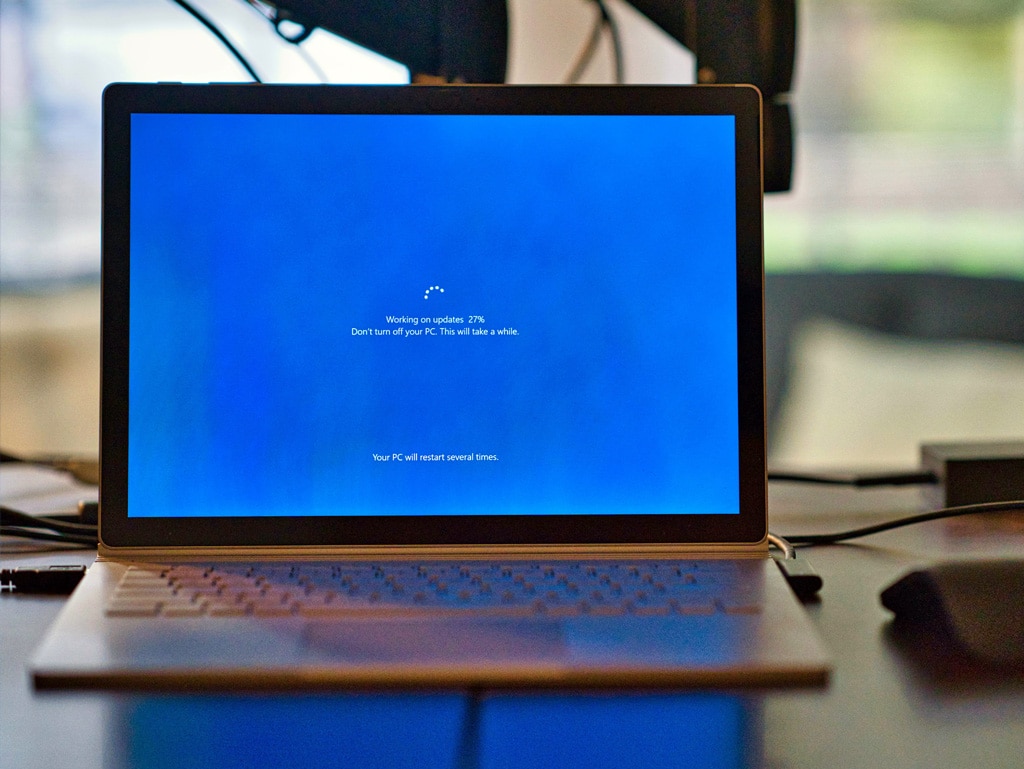
Microsoft released its April 2026 security update this month. It’s an important update fixing a significant number of vulnerabilities, and one you should install. But before you do, it’s worth taking five minutes to read this. Within 48 hours of its release, there were reports of a nasty side effect: some users who installed it and then restarted their PC were immediately locked out.
The culprit is BitLocker, Windows’ built-in encryption system that protects the data on your hard drive. In normal circumstances, BitLocker works silently in the background, and you never notice it. But when it detects certain changes to your system, including changes made by some Windows updates, it can kick in and demand a 48-digit recovery key before letting you back in. If you don’t have that key, you can’t access your computer.
The issue mainly affects PCs configured in a particular way, most commonly on business and company-managed computers. If you’re using a personal laptop or home desktop that you set up yourself, your risk is lower. That said, it’s worth taking a couple of minutes to prepare rather than assuming you’ll be fine.
Before You Update: Three Things to Do Right Now
1. Check whether BitLocker is turned on
Click the Start menu and type “Manage BitLocker” in the search bar. If it shows as “On” next to your C: drive, BitLocker is active, and you need to find your recovery key before updating. If it shows as “Off”, you’re not at risk from this particular issue and can update normally.
2. Find your recovery key
If BitLocker is enabled, on many personal devices, your recovery key is stored in your Microsoft account. On any device or phone, go to account.microsoft.com/devices/recoverykey and sign in. Make a note of the key – write it down or save it somewhere you can access without needing your PC – because if you do get locked out, you won’t be able to look it up on the same machine.
3. Go ahead and update
It’s tempting to put updates off when stories like this do the rounds. Please don’t. The vulnerabilities fixed in this update are serious. The goal is to update safely, not to avoid updating altogether.
If You’ve Already Updated and You’re Locked Out
Firstly, don’t panic! There are things that can be done. If you’re seeing a BitLocker recovery screen asking for a key, try retrieving it from your Microsoft account on your phone or another device (see the link above). Entering the correct 48-digit key should get you back in.
In rare cases, users may encounter issues beyond a recovery prompt. If your login screen is completely unresponsive, with no password box or nothing happens when you click, you may need professional help. These situations are less common and may require additional troubleshooting. Get in touch if you’re in this situation.
For Business Owners and IT Managers
If you’re running a small business with Windows PCs, whether your team is in the office or working from home, please treat this as a priority before your machines update automatically.
The configuration most likely to trigger this issue is common in managed business environments. Before your machines pick up this update, we strongly recommend:
- Making sure every device has its BitLocker recovery key safely backed up.
- Suspending BitLocker temporarily before applying the update (don’t disable it, just pause it for one restart), then allow it to reenable once you’ve confirmed everything is working.
- Ensuring you have a recovery plan in place before rolling updates out across multiple machines.
If you don’t have an IT team managing this for you, now is a good time to get some support in place. Dealing with multiple locked-out machines in a business setting without proper preparation is a painful and costly experience.
We’re Here to Help
Whether you want someone to talk you through the steps above, you’ve already run into a problem, or you’d just like to make sure your home or business machines are properly set up and protected going forward, we’re here.
PC Man has been helping London homes and businesses with exactly these kinds of situations since 2005. We offer both remote support (often the quickest way to get you up and running) and onsite visits across London and the surrounding areas. Call us on 020 3369 0669, email info@ilovepcman.com, or book online.
Photo by Clint Patterson on Unsplash