Troubleshooting Printer Problems
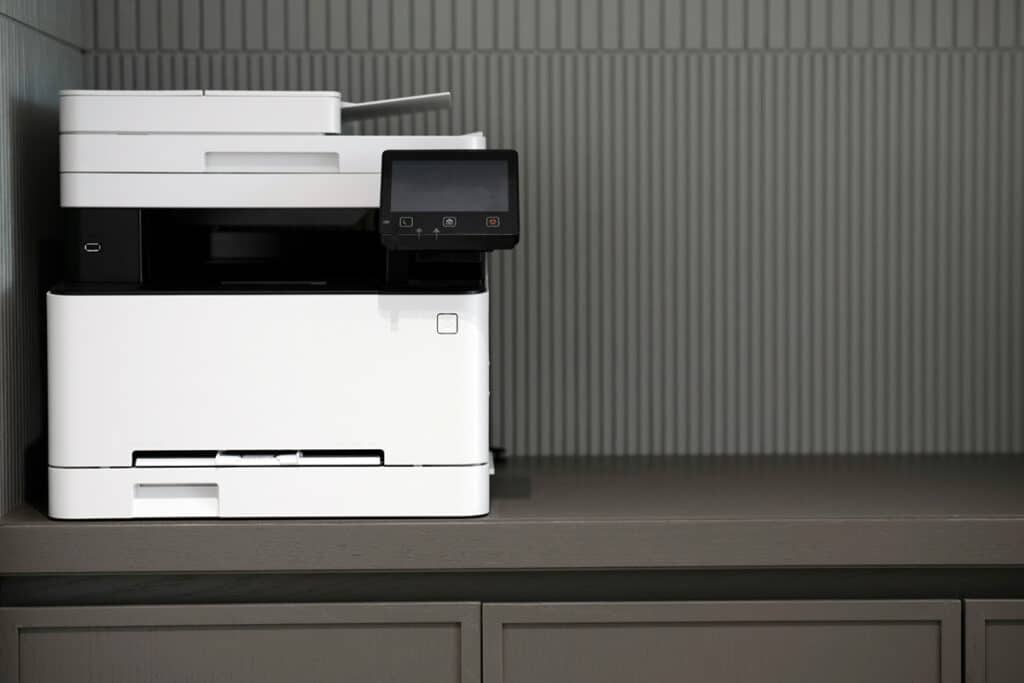
Common Printer Problems and Solutions
Printers are essential tools for businesses and home offices, but when they stop working, they can bring productivity to a grinding halt. At PC Man, we understand how frustrating printer issues can be and have compiled this handy guide to help you troubleshoot common printer problems and get back on track.
1. Printer Won’t Turn On
Problem:
Your printer is totally unresponsive, with no power lights or display activity.
Solution:
- Check the power connection: Ensure the power cable is securely plugged in at both ends to the printer and the wall outlet. Try a different socket to rule out electrical issues.
- Inspect the power button: Some printers require you to hold the power button for a few seconds.
- Test with another cable: If possible, use a different power cable to check for a faulty connection.
If the printer still won’t turn on, it may be a hardware issue that needs professional repair.
2. Paper Jams
Problem:
The printer stops working and displays a paper jam error.
Solution:
- Turn off the printer. Always power down the printer before attempting to clear a paper jam.
- Gently remove the paper. Open the paper tray or access panel and carefully pull out any stuck paper. Avoid tearing it.
- Inspect for debris. Check for small pieces of torn paper or other obstructions in the feed rollers.
- Load paper correctly. Ensure the paper is loaded neatly in the tray and matches the printer’s specifications.
Prevent future jams by using high-quality paper and avoiding overloading the tray.
3. Poor Print Quality
Problem:
Prints are blurry, streaky, or have faded colours.
Solution:
- Clean the print heads. Most printers have a built-in cleaning function accessible via their menu or software.
- Check the ink or toner levels. Refill or replace cartridges if they’re low.
- Inspect the cartridges. Ensure they are correctly installed and compatible with your printer model.
- Use the correct settings. Check your printer’s settings and ensure they match the paper type and quality desired.
For optimal results, always use manufacturer-recommended cartridges and paper.
4. Printer Not Connecting to Computer
Problem:
Your computer can’t detect or communicate with the printer.
Solution:
- Check the cables: Ensure USB or Ethernet cables are securely connected. For wireless printers, verify the printer is connected to the same WiFi network as your computer.
- Restart both devices: Sometimes, restarting the printer and the computer can resolve connection issues.
- Update drivers: Visit the manufacturer’s website to download and install the latest printer drivers.
- Run the troubleshooting tool: On Windows, use the built-in printer troubleshooter under Settings > Devices > Printers & Scanners.
If the problem persists, there could be a network or configuration issue requiring expert assistance.
5. Printer Is Too Slow
Problem:
Printing takes an unusually long time.
Solution:
- Use draft mode: Switch to draft mode for less detailed prints, which speeds up the process.
- Reduce print resolution: Lowering the DPI (dots per inch) can make printing faster without significantly affecting quality for everyday tasks.
- Clear the print queue: Check if multiple print jobs are clogging the queue and cancel unnecessary ones.
- Upgrade your printer: Older models may struggle with modern workloads. Consider investing in a faster, more efficient printer.
When to Call PC Man
If you’ve worked your way through the solutions above and your printer is still giving you a headache, it’s time to bring in the experts! At PC Man, we can diagnose your printer issues quickly and efficiently. Contact us today on 020 3369 0669 and let us take the hassle out of your printer problems!
Photo by Engin Akyurt on Unsplash


SIGN UP TO RECEIVE POSTS STRAIGHT TO YOUR INBOX!